
Today we've published the first interviews of the Profoss Asterisk speakers. Get an idea of who you can meet on 9&10 october by reading the interviews of Raphaël Libois, Vincent Luba and Jordi Nelissen.
Each have a different profile (proprietary systems vendor, developer, company co-founder) and offer their view on Asterisk.
Thursday, 6 September 2007


Wednesday, 5 September 2007
xmonad: a tiling window manager in Haskell
With the Ion 3 stable release around the corner, alpha geeks could be tempted to look for another alternative. Well, there is xmonad written in Haskell, and its development seems quite active, with lots of extensions available, even though it's only at its 0.3 release!
For those interested, xmonad's name comes from the concept of monads in functional programming languages, of which you can find a definition on wikipedia.
Although I'm an Ion 3 addict, I'll keep an eye on it. Along with StumpWM, written in Common Lisp, even if its development doesn't seem as dynamic as xmonad's.
For those interested, xmonad's name comes from the concept of monads in functional programming languages, of which you can find a definition on wikipedia.
Although I'm an Ion 3 addict, I'll keep an eye on it. Along with StumpWM, written in Common Lisp, even if its development doesn't seem as dynamic as xmonad's.
Friday, 31 August 2007
Unbelievable amount of spam
I was surprised that Blogger didn't implement trackbacks. I think to remember to have read somewhere that trackback spam was one of the reasons. And if my experience with News.Profoss is an indication, it might be a valid reason.
Yesterday I had deleted all Trackback spam on News.Profoss, and I was surprised this morning to see, in the admin interface, 12 pages with about 50 trackback spams each. That's 600 spam in one day! On a recent and quite modest website.
I better understand now the decision to not implement Trackbacks. There are spam detection techniques for trackbacks, and I installed it on News.Profoss, but this still takes resources and bandwidth. On a platform hosting thousands of blogs, it makes for a significant resource spilling.
Even some other blogging services like Wordpress implement and propose Trackback spam filtering, I can understand the decision to not propose it due to the spam problem. I'm not even sure I'll leave trackbacks available on News.Profoss. I'm not sure it's worth the pain.
Yesterday I had deleted all Trackback spam on News.Profoss, and I was surprised this morning to see, in the admin interface, 12 pages with about 50 trackback spams each. That's 600 spam in one day! On a recent and quite modest website.
I better understand now the decision to not implement Trackbacks. There are spam detection techniques for trackbacks, and I installed it on News.Profoss, but this still takes resources and bandwidth. On a platform hosting thousands of blogs, it makes for a significant resource spilling.
Even some other blogging services like Wordpress implement and propose Trackback spam filtering, I can understand the decision to not propose it due to the spam problem. I'm not even sure I'll leave trackbacks available on News.Profoss. I'm not sure it's worth the pain.
Thursday, 30 August 2007
Free Software graphics problems illustrated
With Adobe's John Loiacono made some noise with its post title "Innovate or Integrate?". And although publishing Adobe products under an open source license wouldn't prevent them to integrate and innovate, I understand that Free Software graphics solutions cost more when used intensively than the license cost of Adobe's products.
I've already blogged about my problems with FOSS graphics solutions, and here's another illustration. I need to provide a 120x120px logo of the Profoss. As I have material in SVG, I generated a bitmap from Inkscape. This is a png of good quality:
 The problem is that I have to send a GIF. Krita in Ubuntu doesn't support GIF. ImageMagick(s convert command is easy to use:
and gives this result:

Disappointing isn't it? The URL is nearly unreadable, and doesn't look professional.
After looking at IMageMagick's documentation, I tried
convert -background White -flatten -channel A -threshold 65% logo-profoss-120x120.png logo-profoss-120x120.gif
gives a better result:

Let's try with the Gimp (indexed to default settings):
 Still not good...
I tried to specify the color index in Gimp, to change the color of the text, to no avail. Finally I asked to a friend to generated a gif, and he used Adobe's ImageReady, and here's the result:

It's much better, isn't it? And I specifically asked if settings had to be adapted to get this result. The answer: "Just an export".
The funny thing is that he wanted to use Fireworks to do the export, but it refused to start (for an unknown reason, it worked fine before!) , so he had to fall back on ImageReady. Clearly shows even proprietary graphics software has its quirks :-)
I've already blogged about my problems with FOSS graphics solutions, and here's another illustration. I need to provide a 120x120px logo of the Profoss. As I have material in SVG, I generated a bitmap from Inkscape. This is a png of good quality:
 The problem is that I have to send a GIF. Krita in Ubuntu doesn't support GIF. ImageMagick(s convert command is easy to use:
convert profoss-logo-120.png profoss-logo-120.gif
and gives this result:

Disappointing isn't it? The URL is nearly unreadable, and doesn't look professional.
After looking at IMageMagick's documentation, I tried
convert -background White -flatten -channel A -threshold 65% logo-profoss-120x120.png logo-profoss-120x120.gif
gives a better result:

Let's try with the Gimp (indexed to default settings):
 Still not good...
I tried to specify the color index in Gimp, to change the color of the text, to no avail. Finally I asked to a friend to generated a gif, and he used Adobe's ImageReady, and here's the result:

It's much better, isn't it? And I specifically asked if settings had to be adapted to get this result. The answer: "Just an export".
The funny thing is that he wanted to use Fireworks to do the export, but it refused to start (for an unknown reason, it worked fine before!) , so he had to fall back on ImageReady. Clearly shows even proprietary graphics software has its quirks :-)
Monday, 27 August 2007
Free and legal music streaming
Deezer lets you listen on your PC, for free. It is streamed like with last.fm, but you can actually choose which song you want to listen to. Deezer has reached an agreement with the SACEM, the musicians association in France. Some problems are looming though....
Deezer is the new iteration of blogmuzik.net, which was claused earlier by... the SACEM. It seems to be launched by Free, the french ISP.
The interface is well done, but the site is quite slow at the moment. Worth a try I think.
Deezer is the new iteration of blogmuzik.net, which was claused earlier by... the SACEM. It seems to be launched by Free, the french ISP.
The interface is well done, but the site is quite slow at the moment. Worth a try I think.
Wednesday, 22 August 2007
Add Yahoo! Pipes to your toolbox!
TodayI added a feed to the Profoss website. The problem is that the Profoss website contains news in different sections: one for each event, and a general news section about the Profoss itself. And I didn't want to publish multiple feeds: each time a new event is announced, people would have to subscribe to an additional feed; and each time an event is over, people would have to unsubscribe as no more news would be published.
I could have developed this on the server, but it was much easier to generate a feed for each of the news sections, and combine them with Yahoo! Pipes. I had never used Yahoo! Pipes before, but this didn't prevent me of getting a working (and definitive) solution in less than 10 minutes! I created 3 feed reader elements (one for the Asterisk event, one for the virtualisation event, and one for the general news) I then added an union node that combines all input in one output, and connected the feed readers' outputs to the input of this node. As I wanted the items to be ordered by publishing date, I added a sorting node, and specified the publishing date as sorting criteria. After connecting the output of the sorting node to the pipe's output, I was done. Running the piped provides a feed combining all items of the individual feeds ordered by publishig date.
Using the url of the rss output of the pipe with FeedBurner gives the final feed to subscribe to.
This is a very simple example of Yahoo! Pipes use, but the fact that it took me only 10 minutes to get the definitive solution working is a good indication it is very intuitive and effective. It is well thought out, eg you can see the output generated by each node of the graph, which helps you debugging your pipes. There's also good documentation, and the great variety of nodes available (there's a location extractor node for example!) should help you manipulate feeds in a lot of situations.
Using it made me think of CloverETL, also a great tool, but for data(base) migration and manipulation.
I could have developed this on the server, but it was much easier to generate a feed for each of the news sections, and combine them with Yahoo! Pipes. I had never used Yahoo! Pipes before, but this didn't prevent me of getting a working (and definitive) solution in less than 10 minutes! I created 3 feed reader elements (one for the Asterisk event, one for the virtualisation event, and one for the general news) I then added an union node that combines all input in one output, and connected the feed readers' outputs to the input of this node. As I wanted the items to be ordered by publishing date, I added a sorting node, and specified the publishing date as sorting criteria. After connecting the output of the sorting node to the pipe's output, I was done. Running the piped provides a feed combining all items of the individual feeds ordered by publishig date.
Using the url of the rss output of the pipe with FeedBurner gives the final feed to subscribe to.
This is a very simple example of Yahoo! Pipes use, but the fact that it took me only 10 minutes to get the definitive solution working is a good indication it is very intuitive and effective. It is well thought out, eg you can see the output generated by each node of the graph, which helps you debugging your pipes. There's also good documentation, and the great variety of nodes available (there's a location extractor node for example!) should help you manipulate feeds in a lot of situations.
Using it made me think of CloverETL, also a great tool, but for data(base) migration and manipulation.
Sunday, 19 August 2007
Building a webcam recorder with VLC, Ion and Ruby
I promised to build a system to let people leave video messages at a party. The requirements were:
With VLC's WxWidgets interface, it is easy to open a video4linux device (I'm using QuickCam Express II): File > Open Capture Device:
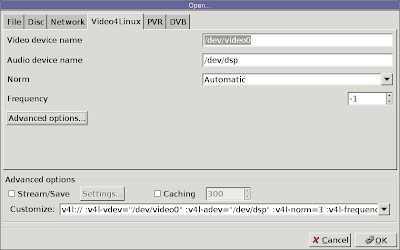
In this dialog, check that the correct device is opened (I open /dev/video0), and things should work as expected: when you click "OK", you see the images captured by your webcam.
In the dialog above, you might have seen the checkbox "Stream/Save". Checking it enables to save the stream from your webcam to a file, the spec of this file being set in the dialog appearing when you click on the Settings Button:
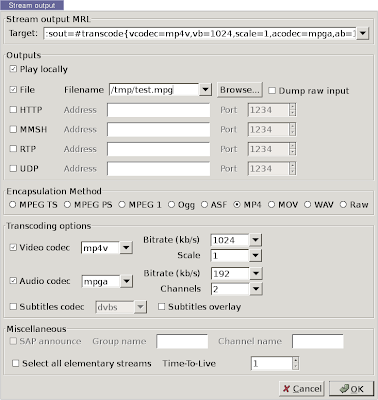
From top to bottom:
Now that it is working with the interface, the next step is to get it working from the command line. As you may have noticed, when you set options in the configuration dialogs above, a text field is filled accordingly. For example, when setting the configuration in the "Save/Stream" options dialog, the top text field has its value set to
which contain all configuration option set in the dialog.
And in the "Open Capture Device", the bottom text field has its value set to
These configuration strings can be used on the command line when launching vlc. Each v4l corresponds to a long option passed to vlc. :v4l-vdev="/dev/video0" becomes --v4l-vdev /dev/video0 on the command line.
We end up with this command:
The next step is to start and stop the recording from a script. This is possible thanks to the RC interface offered by vlc. the RC interface, launched by passing the option -I RC to vlc, gives you a command prompt to control VLC. With the option "--rc-host localhost:4444", this command interface is even reachable by telnet on port 4444.
Typing help at the command prompt will give all commands available, but we'll only need:
I've had problem sometimes for the options to be taken into account. Going through the vlc extended GUI and enabling the image adjustements usually fixed it.
Building a little interface on this is quite straight-forward. I used Ruby and Tk. The GUI is made of.... 1 button used to start and stop the recording. It is triggered by pressing the "Enter" key. The control GUI also shows how long, in seconds, the person still has before reaching the maximum lenght of the recording.
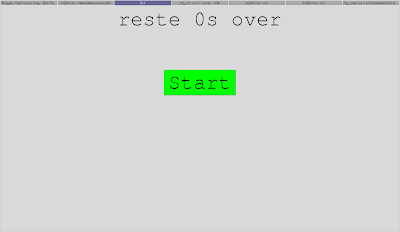
The script starts VLC with the RC interface and the telnet connections accepted on port 4444. All commands are passed to VLC through the telnet connection. VLC always stores the dumped stream in the same location, and at the end of the recording session, the script moves it over to a definitive location, with a unique name based on the timestamp.
The problem with this setup in a "standard" window manager, is that recording starts, a window is opened to display the image coming in from the camera. this window covers the command unterface, which makes it impossible for the user to simply press on Enter to stop the recording, and the focus is on the vlc output window.
For Ion 3 users, there a quick solution here: split your workspace in two, and make the GUI appear in the left frame, and the vlc output window in the right. What's even cooler is that when the vlc output window is opened when the user starts the recording, the focus stays with the command GUI.
I will assume that you have installed Ion3, and copied the standard config files to ~/.ion3, as explained in the Ion3 documentation.
I created a new user, for which I set Ion3 as the window manager to use. I'm using kdm, so I edit .xsession with this content
and at log in I choose the "Default" window manager.
When you log in, you get a workspace with one frame. To split it vertically, use Meta+K S. You can bind the key you want to Meta in ~/.ion3/cfg_ion.lua. I set it to Meta4, which is the Windows key on my laptop.
To identify the frame, it is necessary to give them a name. Focus the frame you want to rename, and press Meta+F3. This brings up the Lua code interpreter. Type the following command:
and press "Enter". You are then promted for a name. Give the name app to the left frame, and vlc to the right one.
Ion automatically saves your workspaces when you log out. As the app is running under a specific user, this will not have to be repeated.
To make a window appear in a specific frame is achieved with the defwinprop directive in the user configuration of Ion. To identify the properties of a window, the xprop command can be used, or, even better when using the Ion WM, use the frame context menu (left click on the title bar of the frame, of Meta+M) to get the "Window Info":
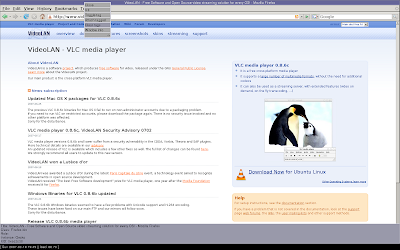
Once you have this info, you can configure the GUI window to appear in the left frame.
The class of the command GUI is Webcamrecorder.rb, the instance is webcamrecorder.rb. It should go in the app frame, and focus should go to this window. This gives this configuration line in cfg_user.lua:
The problem with the vlc output window is that it has no class nor instance property set... Only the title is set to "VLC XVideo ouput", which is an identification information not supported by defwinprop.... I set this in the cfg_user.lua file, so that all windows except the control GUI appear in the right frame:
I set the last line of the cfg_user.lua file to
to start the webcamrecorder immediately when logging in.
Note that I first wanted to place this in the .xsession file, but it didn't work. Apparently, webcamrecorder.rb has to be started from a terminal, or it won't work. I suspect this is due to the RC interface we request from vlc.
Once you have your solution up, you can clean your Ion bindings to avoid users switching frames, creating workspaces or starting terminals. I also cleaned up cfg_ion.lua to limit the number of modules loaded. I end up with these config files: cfg_ion.lua, cfg_ionws.lua, cfg_menu.lua, cfg_query.lua. Together with the webcamrecorder.rb script, it's all what makes up this quick hack.
Update: Richard took the script and made a GTK version. He posted it in the comments, together with information on how he's using v4l2. I put the script in a file webcamrecordergtk.rb that you can download. Thanks Richard!
- people have to see the stream while it is recorded, so they're sure they are in the video
- the system has to be extremely simple to use, possibly requiring the use of only one keyboard keypress to start and stop recording
- the recorded video have a maximum length, so that we avoid recording when someone forgot to stop the recording after his/her message
With VLC's WxWidgets interface, it is easy to open a video4linux device (I'm using QuickCam Express II): File > Open Capture Device:

In this dialog, check that the correct device is opened (I open /dev/video0), and things should work as expected: when you click "OK", you see the images captured by your webcam.
In the dialog above, you might have seen the checkbox "Stream/Save". Checking it enables to save the stream from your webcam to a file, the spec of this file being set in the dialog appearing when you click on the Settings Button:

From top to bottom:
- Check "Play locally", as this shows the stream captured by the webcam on your screen
- check "File", as this will save the stream coming from the webcam into the filename you enter in the textbox.
- choose MP4 as "Encapsulated Method". You need to choose this carefully as not all encapsulation methods accept all format. Check the VLC streaming features page for more info.
- According to the Encapsulation Method you have chosen, choose the right video and audio codec. For MP4 it's respectively mp4v and mpga. If you only want to dump the video, only the video checkbox has to be ticked.
Now that it is working with the interface, the next step is to get it working from the command line. As you may have noticed, when you set options in the configuration dialogs above, a text field is filled accordingly. For example, when setting the configuration in the "Save/Stream" options dialog, the top text field has its value set to
which contain all configuration option set in the dialog.
And in the "Open Capture Device", the bottom text field has its value set to
v4l:// :v4l-vdev="/dev/video0" :v4l-adev="/dev/dsp" :v4l-norm=3 :v4l-frequency=-1
These configuration strings can be used on the command line when launching vlc. Each v4l corresponds to a long option passed to vlc. :v4l-vdev="/dev/video0" becomes --v4l-vdev /dev/video0 on the command line.
We end up with this command:
The next step is to start and stop the recording from a script. This is possible thanks to the RC interface offered by vlc. the RC interface, launched by passing the option -I RC to vlc, gives you a command prompt to control VLC. With the option "--rc-host localhost:4444", this command interface is even reachable by telnet on port 4444.
Typing help at the command prompt will give all commands available, but we'll only need:
- add v4l:// to start the recording. It opens the v4l device passed in the options of the command line, and outputs the stream to what we configured on the command line as well: the file and the screen.
- stop to end the recording
--contrast 1.9 --brightness 1.7 --saturation 2.3
I've had problem sometimes for the options to be taken into account. Going through the vlc extended GUI and enabling the image adjustements usually fixed it.
Building a little interface on this is quite straight-forward. I used Ruby and Tk. The GUI is made of.... 1 button used to start and stop the recording. It is triggered by pressing the "Enter" key. The control GUI also shows how long, in seconds, the person still has before reaching the maximum lenght of the recording.

The script starts VLC with the RC interface and the telnet connections accepted on port 4444. All commands are passed to VLC through the telnet connection. VLC always stores the dumped stream in the same location, and at the end of the recording session, the script moves it over to a definitive location, with a unique name based on the timestamp.
The problem with this setup in a "standard" window manager, is that recording starts, a window is opened to display the image coming in from the camera. this window covers the command unterface, which makes it impossible for the user to simply press on Enter to stop the recording, and the focus is on the vlc output window.
For Ion 3 users, there a quick solution here: split your workspace in two, and make the GUI appear in the left frame, and the vlc output window in the right. What's even cooler is that when the vlc output window is opened when the user starts the recording, the focus stays with the command GUI.
I will assume that you have installed Ion3, and copied the standard config files to ~/.ion3, as explained in the Ion3 documentation.
I created a new user, for which I set Ion3 as the window manager to use. I'm using kdm, so I edit .xsession with this content
exec /usr/local/ion3/bin/ion3
and at log in I choose the "Default" window manager.
When you log in, you get a workspace with one frame. To split it vertically, use Meta+K S. You can bind the key you want to Meta in ~/.ion3/cfg_ion.lua. I set it to Meta4, which is the Windows key on my laptop.
To identify the frame, it is necessary to give them a name. Focus the frame you want to rename, and press Meta+F3. This brings up the Lua code interpreter. Type the following command:
mod_query.query_renameframe(_)
and press "Enter". You are then promted for a name. Give the name app to the left frame, and vlc to the right one.
Ion automatically saves your workspaces when you log out. As the app is running under a specific user, this will not have to be repeated.
To make a window appear in a specific frame is achieved with the defwinprop directive in the user configuration of Ion. To identify the properties of a window, the xprop command can be used, or, even better when using the Ion WM, use the frame context menu (left click on the title bar of the frame, of Meta+M) to get the "Window Info":

Once you have this info, you can configure the GUI window to appear in the left frame.
The class of the command GUI is Webcamrecorder.rb, the instance is webcamrecorder.rb. It should go in the app frame, and focus should go to this window. This gives this configuration line in cfg_user.lua:
The problem with the vlc output window is that it has no class nor instance property set... Only the title is set to "VLC XVideo ouput", which is an identification information not supported by defwinprop.... I set this in the cfg_user.lua file, so that all windows except the control GUI appear in the right frame:
defwinprop { target = "vlc"}
I set the last line of the cfg_user.lua file to
exec('xterm -e /usr/local/bin/webcamrecorder.rb')
to start the webcamrecorder immediately when logging in.
Note that I first wanted to place this in the .xsession file, but it didn't work. Apparently, webcamrecorder.rb has to be started from a terminal, or it won't work. I suspect this is due to the RC interface we request from vlc.
Once you have your solution up, you can clean your Ion bindings to avoid users switching frames, creating workspaces or starting terminals. I also cleaned up cfg_ion.lua to limit the number of modules loaded. I end up with these config files: cfg_ion.lua, cfg_ionws.lua, cfg_menu.lua, cfg_query.lua. Together with the webcamrecorder.rb script, it's all what makes up this quick hack.
Update: Richard took the script and made a GTK version. He posted it in the comments, together with information on how he's using v4l2. I put the script in a file webcamrecordergtk.rb that you can download. Thanks Richard!
Subscribe to:
Posts (Atom)